
Switching software
Switching builder software without stopping work
Changing software in the middle of the season is the hard part. You don't have to move every job at once. Start the next house in HomeTakeOff, bring over the lists you reuse, and let the jobs already running finish where they are.
- Start with the next job, not every job
- Import your subs from a spreadsheet
- Bring budgets in from CSV
- Start the schedule from a template
Free during the beta. No credit card.
1. Export what you have
Most builder software and every spreadsheet can export to CSV or Excel. Export your subcontractor list, and the budget and the schedule for the job you'll move first.
2. Bring your subs over
Upload your spreadsheet of subs, or fill in the template. Before anything is added, a review list shows which subs are new, which are already there, which will update, and any rows to fix.
3. Set up the next job
Start the project from the custom home, kitchen or bathroom template, or from one you saved, then import the budget from CSV. Schedule tasks import from CSV too, into phases you've set up.
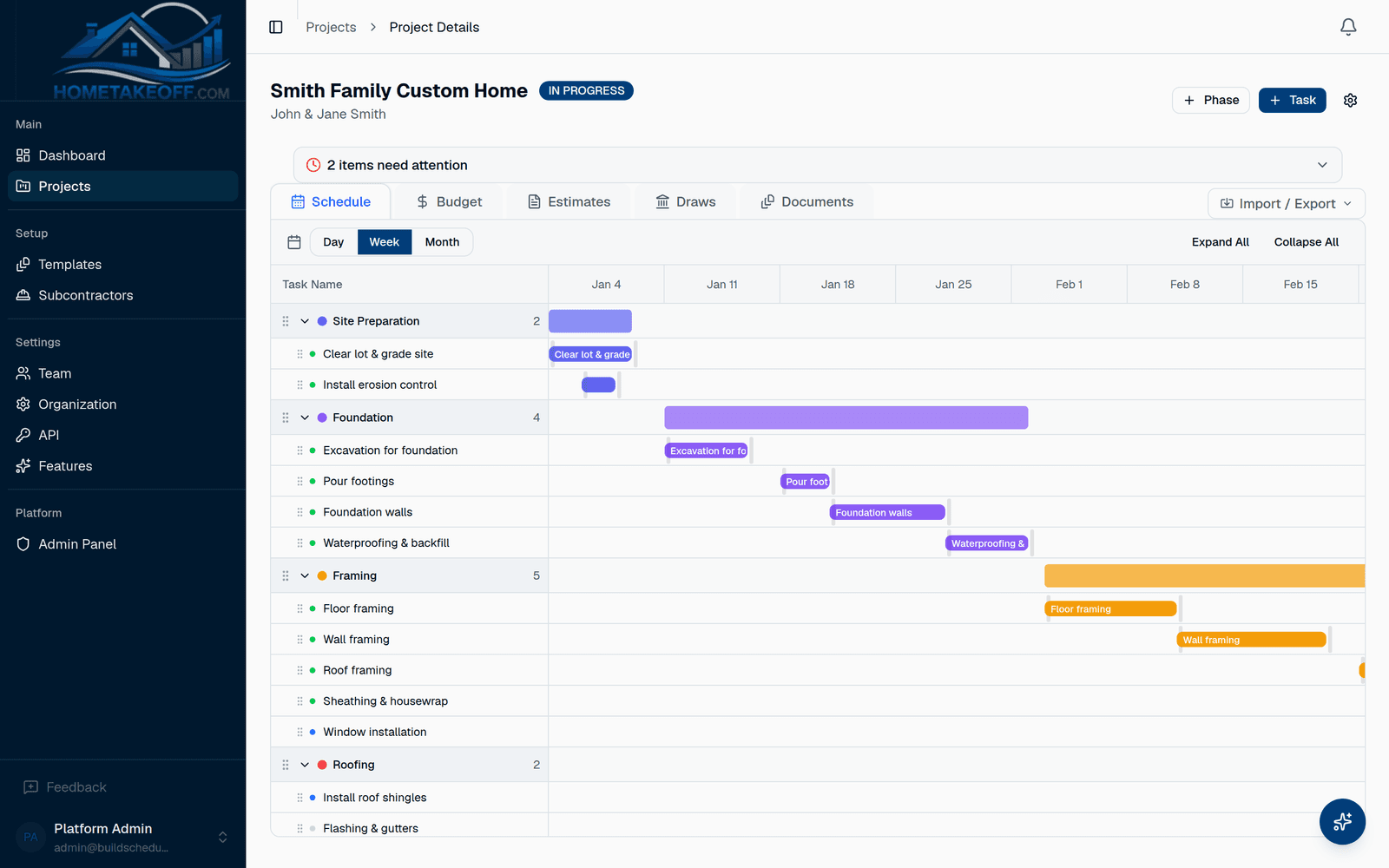
4. Run one job, then the rest
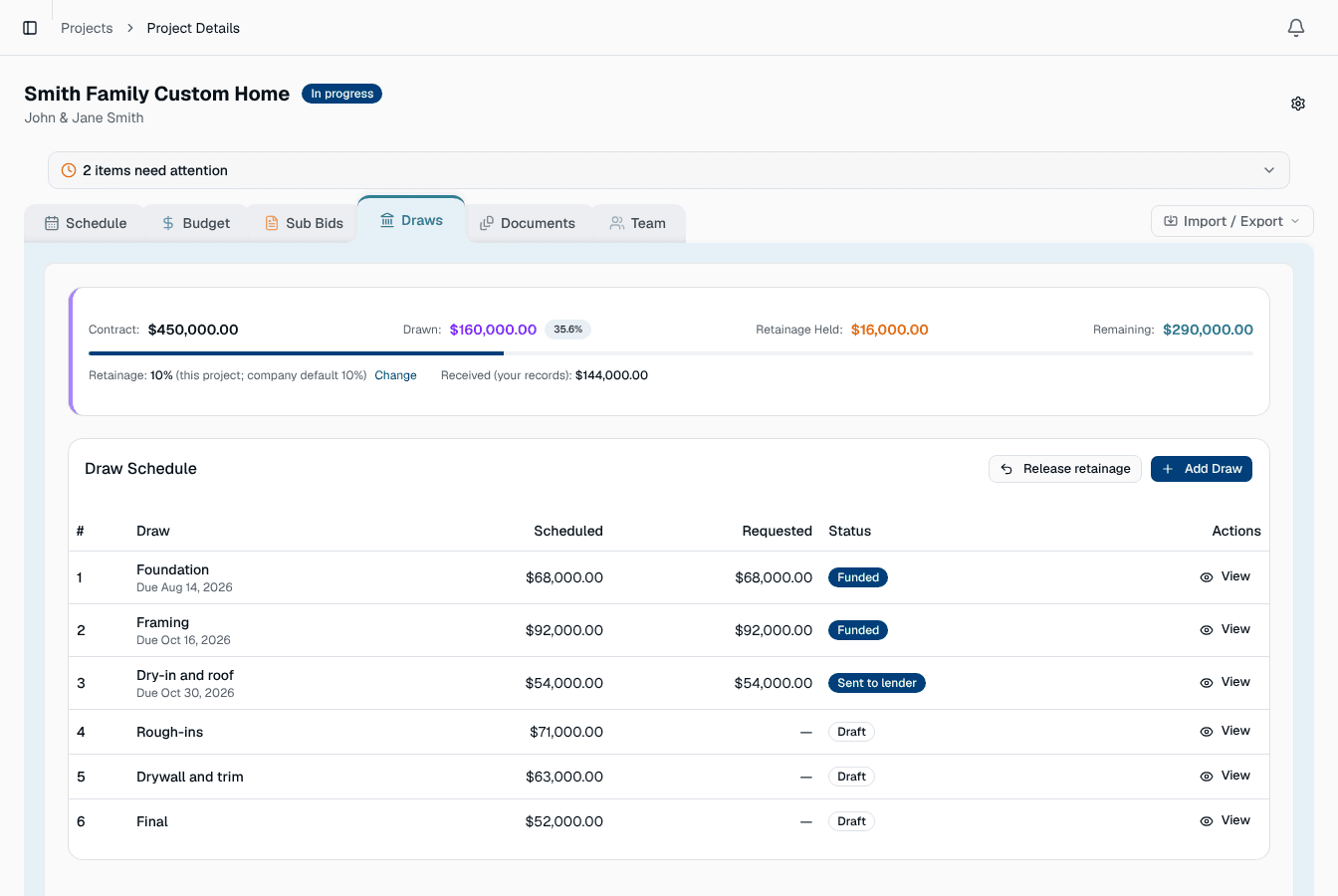
Run the new job in HomeTakeOff while older jobs finish where they are. Send bid requests, track the budget and set up the draws. Move the next job when you're ready.
Questions builders ask
Is there a direct import from my old software?
Not yet. Export to CSV or Excel from your old tool, then import your subs, budget and schedule tasks here.
Do I have to move every job at once?
No. Most builders start the next new job in HomeTakeOff and let the jobs already running finish in the old tool.
How much does it cost?
Nothing during the beta. Everything in the app is free for every account, including the AI Assistant, up to a generous allowance for each company. There is no credit card and no trial clock. Beta users will hear about any change well in advance.
Try it on your next job
Create a free account, look around the sample project, then schedule a real one.
Create a free account